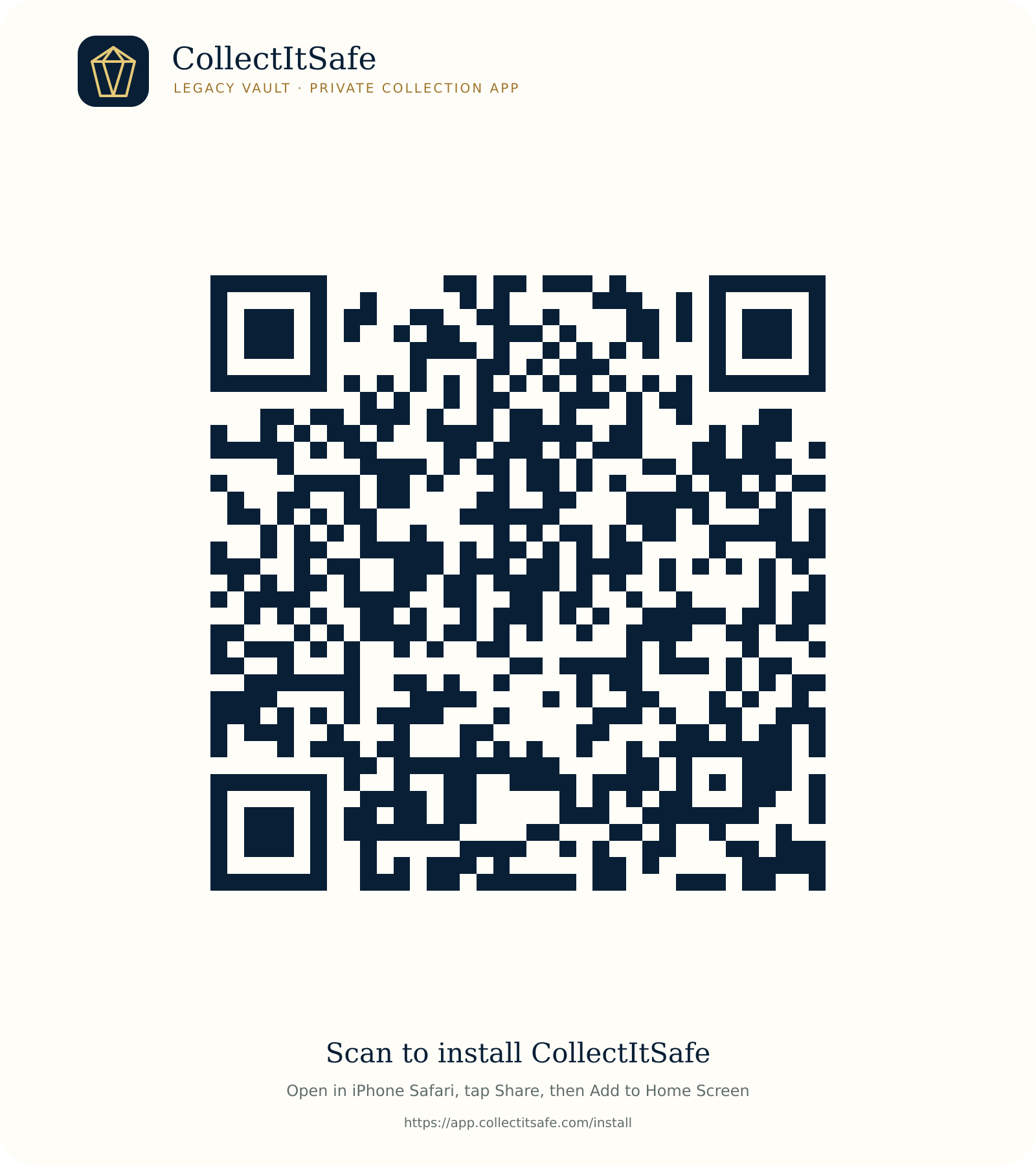
 Scan with your phone camera
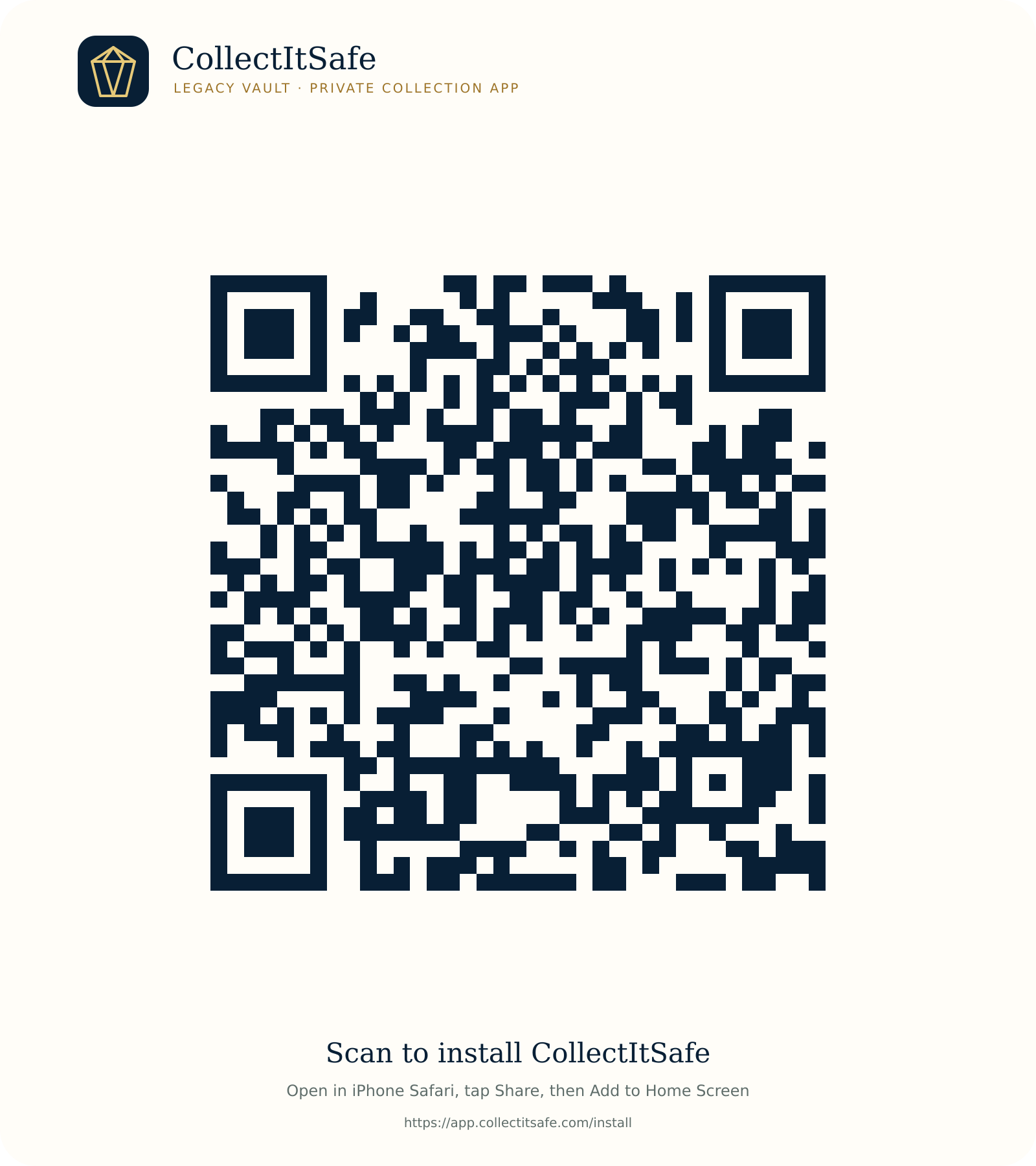
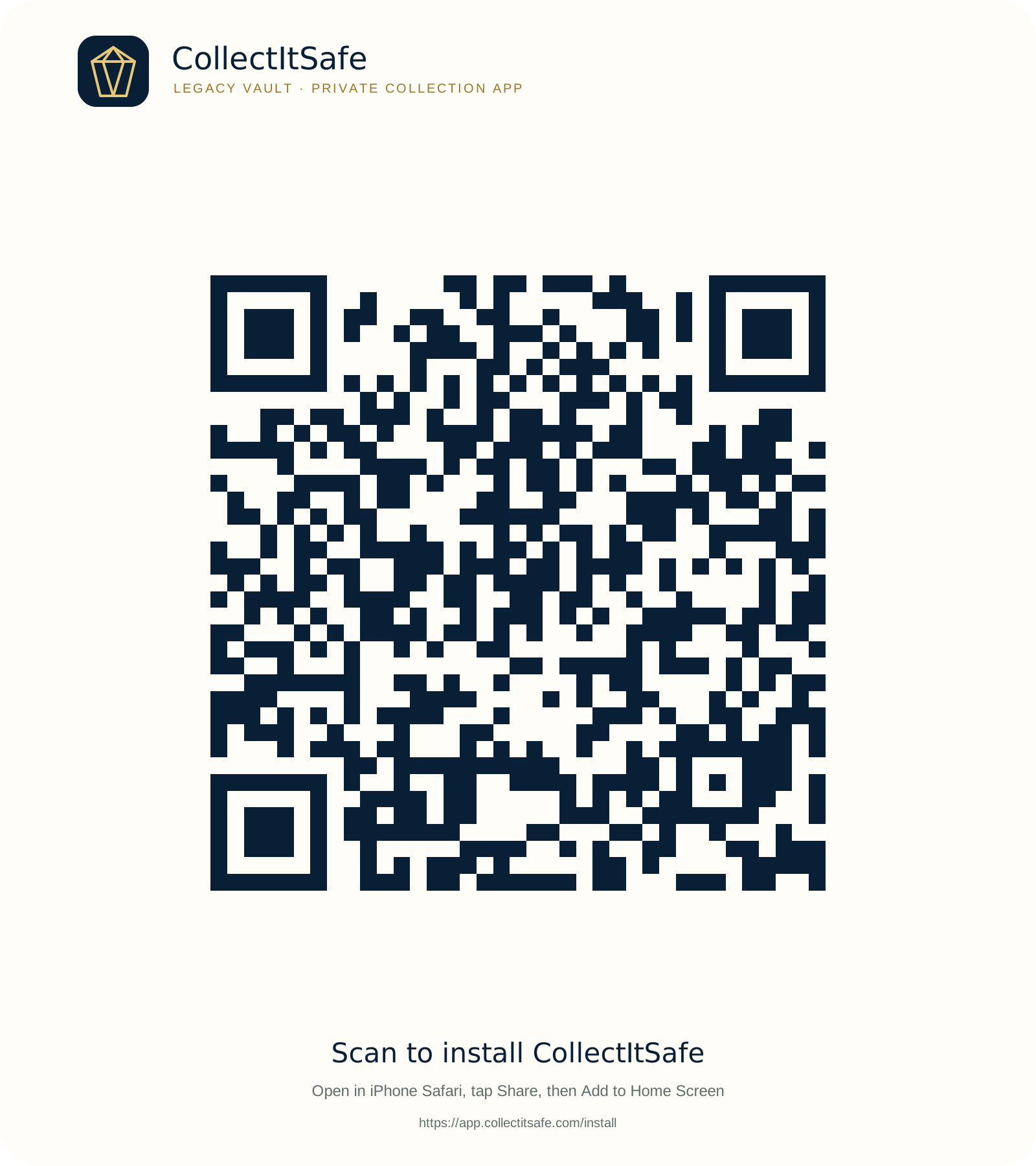
One synchronized collection
The website and installed app call the same authenticated APIs and use the same backend. No second collection or account is created.
PHONE SETUP
CollectItSafe installs from the web and continues to use the same member account, collection, research library, photos, and secure backend.
IPHONE & IPAD
Apple’s Add to Home Screen option is available from Safari.
Use the Share button in Safari’s toolbar.
Confirm “CollectItSafe,” then tap Add.
The website and installed app call the same authenticated APIs and use the same backend. No second collection or account is created.
The offline cache holds only the public launch shell and brand assets. Collection data, values, photos, research, account, tokens, and payment information are never cached.
Camera access is requested only when you choose Scan or take a photo. Manual label-code entry remains available if camera or QR detection is unavailable.
LABEL PRINTING
Print the compact Legacy Vault label from any saved item. The exact diamond, item name, public item number, and high-contrast QR repeat on every label; private values and notes never print.
Start with a printer you already own. Check its brand and exact model before replacing it. We’re looking for a printer you can comfortably hold in one hand, with suitable labels and an iPhone printing workflow.
No model verified for all requirements yet. No buying recommendation is established near the roughly $50 target. Export, app import, label fit, printing and scanning have not been tested on a qualifying model.
“Thermal inkjet” uses an ink cartridge and differs from direct thermal printing on heat-sensitive paper. That does not automatically satisfy the non-thermal requirement; verify the exact technology before recommending a model.
CollectItSafe print-and-scan test pending. The app does not pair directly with a Bluetooth printer. Check the manual and label specifications of a mini printer you already own. Changing paper cannot convert a thermal printer into a non-thermal printer. A model that already meets the non-thermal requirement may only need suitable label stock.
A readable QR code does not prove long-term durability. Keep the digital record as the lasting copy. No qualified printer or archival-label system has been verified here.The current label layout is 50 mm wide, with a 31 mm QR code. Check the printer’s actual printable width, supported label stock, and phone or computer connection. Smaller tape printers need a separately prepared label layout. Direct printing from CollectItSafe has not been tested with a specific printer.
For a hot garage, look for durable film label sheets made for your printer and ink or toner, with adhesive suited to the storage conditions. Pigment-based inkjet or laser printing on compatible film can be more water resistant than ordinary dye-based ink on paper. Direct-thermal label makers are not our recommendation for lasting records. Check your printer manufacturer’s media guidance before putting adhesive sheets through it. Attach labels to a protective sleeve, tag or storage container rather than directly to a valuable object, and scan-test every new label.
Open a saved item, choose Print QR label, select the storage environment, and use Print / reprint label. The current build opens your device’s print window so you can choose a compatible printer already set up on that device.
Direct thermal labels can fade or darken with heat, sunlight, and age. For labels meant to last, choose durable stock compatible with your printer and storage conditions. The app does not pair directly with a Bluetooth printer.
Standard Indoor is for climate-controlled rooms and cabinets. Heat, sunlight, age, skin oils, and storage conditions can make thermal labels fade or darken. For long-term identification where permanence matters, choose a durable non-thermal method suited to the item and its environment.
Treat every physical label as a replaceable pointer to the permanent digital record. Inspect labels periodically and replace them if QR contrast or adhesion changes.